

Counter-Strike 2 has solidified itself as Valve's premier competitive shooter, and the difference between victory and defeat often comes down to milliseconds. In high-level play—whether in professional tournaments, FACEIT, or Premier matches—a gap of 10-20 frames per second can determine who walks away with the round. Configuring your in-game settings properly is essential for competitive success.
This guide covers the essential CS2 settings adjustments that will help you gain a real edge, regardless of your hardware or playstyle. Whether you're running a budget PC and need every frame you can extract, or you're working with a high-end machine and want maximum visual quality, the right configuration matters.
Table of Contents
- FPS-Focused Settings for Competitive Performance
- Graphics Settings for Visual Quality
- Audio Configuration for Sound Localization
- Crosshair Setup and Customization
- Advanced Video Settings Explained
- Finding Your Optimal Setup
- Frequently Asked Questions
FPS-Focused Settings for Competitive Performance
If your priority is maximizing frame rate, you'll need to make strategic sacrifices in visual quality. The goal is to push your system to deliver consistent, high framerates that give you a smoother, more responsive experience.
Start by setting your resolution to your native ratio but use a lower overall resolution. This immediately reduces the workload on your GPU while maintaining proper aspect ratios. Lower quality settings across the board—textures, shadows, particle effects—will further boost performance. The trade-off is worth it if you're targeting 144+ fps on a mid-range setup.
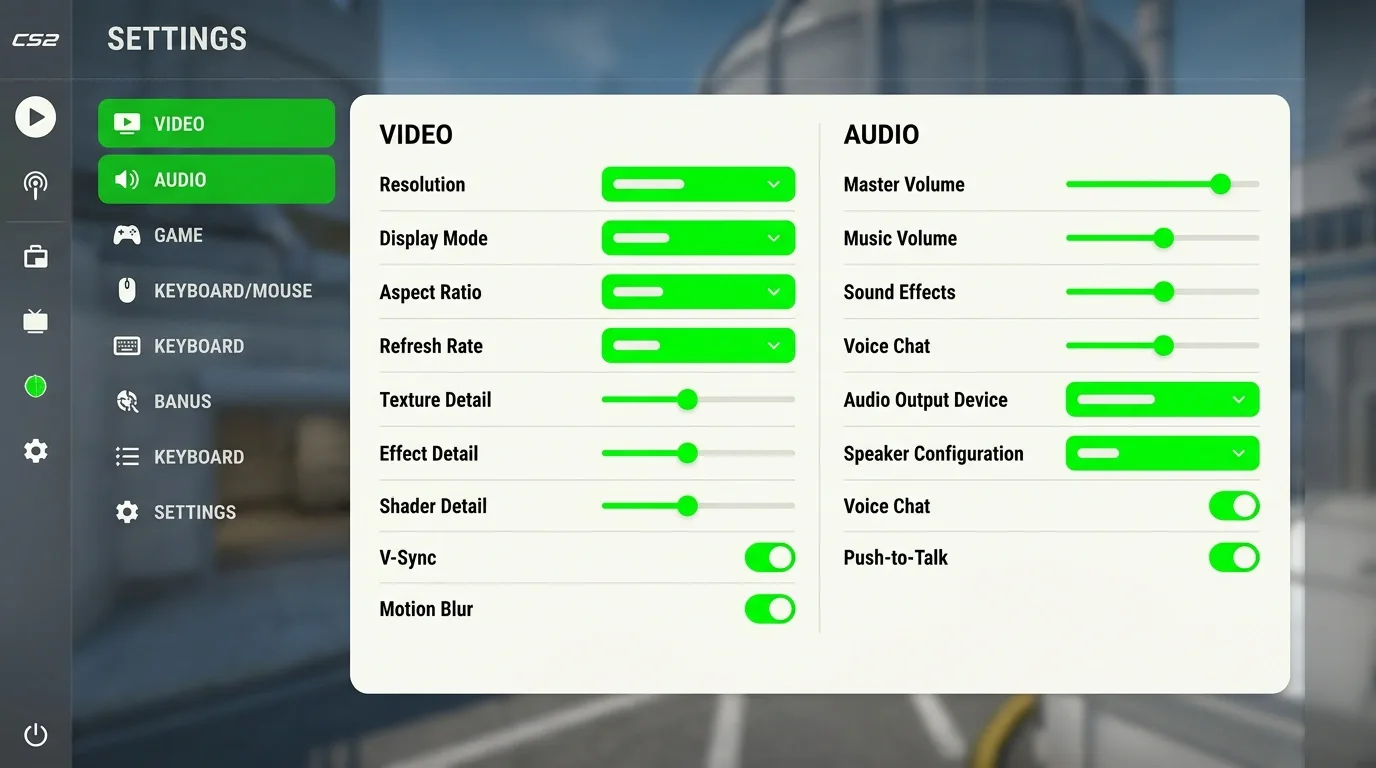
Display mode should always be Fullscreen for competitive play. This eliminates input lag and ensures your game has full priority on system resources. Windowed or borderless modes introduce latency that can cost you crucial engagements.
Your refresh rate setting should match your monitor's maximum capability. If you have a 144Hz monitor, set this to 144. If you're running 240Hz, match that. Misalignment between your monitor's refresh rate and in-game setting creates screen tearing and inconsistent frame delivery.
In the advanced settings menu, disable or minimize features that don't impact competitive performance. FidelityFX Super Resolution should be disabled unless you're struggling to reach your target fps. Global shadow quality can be set to low or medium. Model and texture detail should drop to low or medium as well. These adjustments collectively can add 30-50 fps depending on your hardware.
Graphics Settings for Visual Quality
If your hardware can handle it and you prioritize visual fidelity over maximum frames, you can configure CS2 for a premium visual experience. This approach works best on high-end systems capable of maintaining 100+ fps while running quality settings.
Set your resolution to the highest supported by both your monitor and machine. Pair this with the highest refresh rate your display can handle. In the advanced settings, enable 8X MSAA (Multisample Anti-Aliasing) to smooth out jagged edges on geometry and weapons.
Increase global shadow quality to Very High. Set model and texture detail to High. Use Anisotropic 16X filtering for textures—this makes distant textures appear sharper and more defined. Particle detail should be Very High to make utility and effects more visually distinctive. Enable Ambient Occlusion on High to add depth and realism to shadows in crevices and corners.
High Dynamic Range (HDR) set to Quality enhances color depth and contrast if your monitor supports it. Cap your maximum in-game fps at 60 or higher depending on your comfort level. Capping frames reduces GPU strain and allows your system to prioritize visual quality over raw frame output.
A word of caution: this configuration sacrifices competitive advantage for visual appeal. Players running 200+ fps will have a measurable edge in responsiveness. Use this setup only if you value aesthetics over ranking up.
Audio Configuration for Sound Localization
Sound design in CS2 is critical for competitive awareness. Footsteps, weapon fire, utility deployment—all of these audio cues tell you where enemies are positioned. Your audio settings should be optimized to maximize spatial awareness.
Always use headphones for competitive play. Speakers make it nearly impossible to determine sound direction, and you'll lose crucial information about enemy positioning. Headphones provide the stereo separation needed to pinpoint whether a sound comes from your left, right, front, or behind.
Set your EQ Profile to Crisp. This preset enhances sound localization and reduces in-game muffling, making footsteps and utility sounds clearer and more directional. The difference is noticeable within the first few rounds.
L/R Isolation should be set to 50%. This value balances stereo separation with natural sound imaging. At 100%, sounds become too isolated in each earcup, making it difficult to judge whether audio is coming from directly in front or behind you. At 0%, all sounds merge into a centered image, losing directional precision. 50% provides the sweet spot for most players.
Enable Perspective Correction. This setting adjusts audio playback so sounds appear to come from their actual in-game position more accurately. Combined with L/R isolation, it dramatically improves your ability to locate enemies by sound alone.
Voice and Microphone mode should be set to Push to Talk. This prevents constant background noise from your microphone flooding your teammates' audio feed. Only transmit when you have important callouts to make.
Crosshair Setup and Customization
Your crosshair is the most personal setting in CS2 because playstyle determines what works best. However, there are universal principles that apply regardless of your preference.
The crosshair must be visible on all in-game backgrounds. This means choosing a bright color—bright green, cyan, or yellow work well. If you struggle with visibility, add an outline around your crosshair to increase contrast against complex map textures.
Players who rely on spray control often prefer a wider crosshair gap. This larger gap makes it easier to track where your bullets are going during extended spray patterns. If you're a tap-and-burst player, a solid dot or very tight crosshair works better because you need precision over spray visualization.
Experiment with different styles in offline practice matches before committing to a setup. Your crosshair should feel intuitive and require zero conscious thought during firefights. Many professional players use tight, minimalist crosshairs with 1-2 pixel gaps, but this is personal preference backed by thousands of hours of practice.
Advanced Video Settings Explained
Beyond the basic video menu, CS2 offers advanced settings that fine-tune performance and visuals. Understanding what each setting does helps you make informed choices about your configuration.
Boost Player Contrast increases the visibility of enemy models against backgrounds. This is universally recommended—enable it. It makes spotting enemies at distance and through smoke easier without creating a competitive disadvantage.
Maximum FPS in Game should be set based on your target. If you want 240 fps, set this to 240. If you want consistency at 144 fps, cap it there. Capping fps reduces GPU load and can stabilize frame delivery.
Maximum FPS in Menus should be 60. There's no reason to render menu screens at high framerates; this just wastes power and generates heat.
Multisample Anti-Aliasing (MSAA) smooths jagged edges. 8X MSAA provides excellent quality with moderate performance cost. 4X is a compromise option. Disable it entirely if you're chasing maximum fps.
Global Shadow Quality affects how detailed shadows appear. Very High looks best but costs fps. Medium is the practical compromise for competitive play.
Model and Texture Detail controls polygon count and texture resolution. High is the sweet spot for most setups. Low is for budget systems.
Texture Filtering Mode set to Anisotropic 16X makes distant textures appear sharper. This helps you spot enemies at range. It has minimal performance impact.
Particle Detail affects visual effects like smoke, explosions, and muzzle flashes. Very High is recommended because it makes utility more visually distinct, helping you track grenades and smokes more easily.
Ambient Occlusion adds shadowing to crevices and corners, enhancing depth perception. High is recommended if your system can handle it.
HDR (High Dynamic Range) improves color and contrast on compatible monitors. Set to Quality if supported; otherwise disable.
FidelityFX Super Resolution upscales lower-resolution rendering to your native resolution. Disable this for competitive play—it introduces input lag and visual artifacts that hurt precision.
Finding Your Optimal Setup
The reality is that no single configuration works for everyone. Your hardware determines what's possible. Your playstyle determines what feels natural. Your competitive goals determine what matters most.
Start by assessing your priorities. Are you chasing every frame because your rank depends on responsiveness? Or are you building a system that looks great while remaining playable? Once you've answered that, use this guide's recommendations as a starting point and adjust from there.
CS2REF provides detailed breakdowns of professional player settings and hardware configurations if you want to see what top competitors use. However, remember that pro settings are built around specific hardware and years of muscle memory. What works for a professional player might not be optimal for your setup.
Test your changes in offline practice matches or community servers before jumping into competitive play. Small adjustments to resolution, shadow quality, or audio settings can feel jarring at first. Give yourself 10-20 rounds to adapt before deciding whether a change helped or hurt your performance.
The smallest gains matter in competitive Counter-Strike 2. A 20 fps difference can shift close fights in your favor. Clearer audio localization helps you position defensively. A visible crosshair speeds up target acquisition. Collectively, these optimizations compound into measurable improvement.
Frequently Asked Questions
What's the difference between native resolution and lower resolution for CS2?
Native resolution matches your monitor's physical pixel count. Lower resolutions render the game at fewer pixels, then stretch to fill your screen. Lower resolutions boost fps significantly but can make models appear blurry. Native resolution looks sharper but demands more GPU power. For competitive play, most players choose a slightly lower resolution (like 1600x900 on a 1920x1080 monitor) to gain 30-50 fps while maintaining reasonable clarity.
Should I cap my frames at my monitor's refresh rate?
Not necessarily. Capping frames at your refresh rate (144 for a 144Hz monitor) reduces GPU load and stabilizes frame delivery. However, rendering frames beyond your refresh rate and letting your monitor display the most recent frame can reduce input lag. Many competitive players target 20-30 fps above their refresh rate. Experiment to find what feels most responsive on your system.
Is HDR worth enabling for competitive CS2?
HDR improves color depth and contrast on compatible monitors, making the game look more visually appealing. However, it introduces minimal input lag and can impact frame consistency. For pure competitive play, disable it. If you have a high-end system maintaining 200+ fps, enabling HDR won't hurt much and improves visuals noticeably.
How important is audio configuration compared to graphics settings?
Audio is equally important, if not more so. Sound localization directly impacts your ability to win rounds by positioning defensively and rotating to threats. A player with perfect audio settings but lower fps will often outperform a player with high fps but poor audio configuration. Prioritize audio optimization alongside your graphics settings.
Can pro player settings work for my system?
Professional settings are optimized for specific high-end hardware and represent years of personal preference. Your system likely has different specs, so directly copying pro settings won't guarantee the same performance. Use pro settings as inspiration, then adjust resolution, quality levels, and fps caps to match your hardware's capabilities. The principles matter more than the exact numbers.
What should I do if I'm getting inconsistent frame rates?
Inconsistent frames usually mean your system is struggling to maintain stable performance. Lower your resolution by 10-15%. Disable or reduce shadow quality, particle detail, and texture filtering. Cap your maximum fps at a value your system consistently achieves. Close background applications consuming CPU or GPU resources. Thermal throttling (overheating) can also cause frame drops—ensure your PC has adequate cooling.
📦 Key-Drop — The #1 CS2 Case Opening Platform
2,700+ Cases • Provably Fair • Daily Free Cases • Instant Withdrawals • 8M+ Users
Get 20% Bonus — Code: LOOT